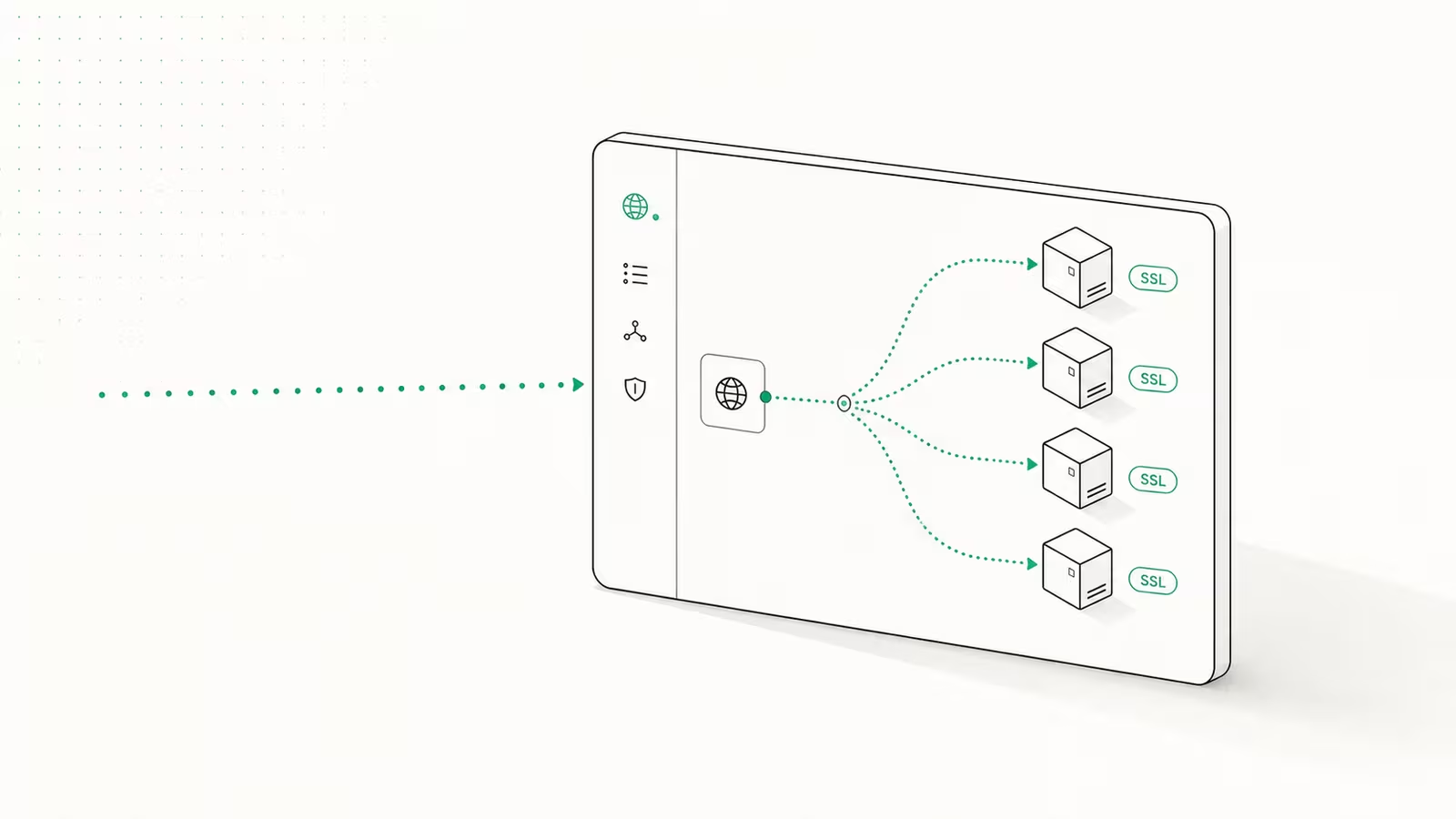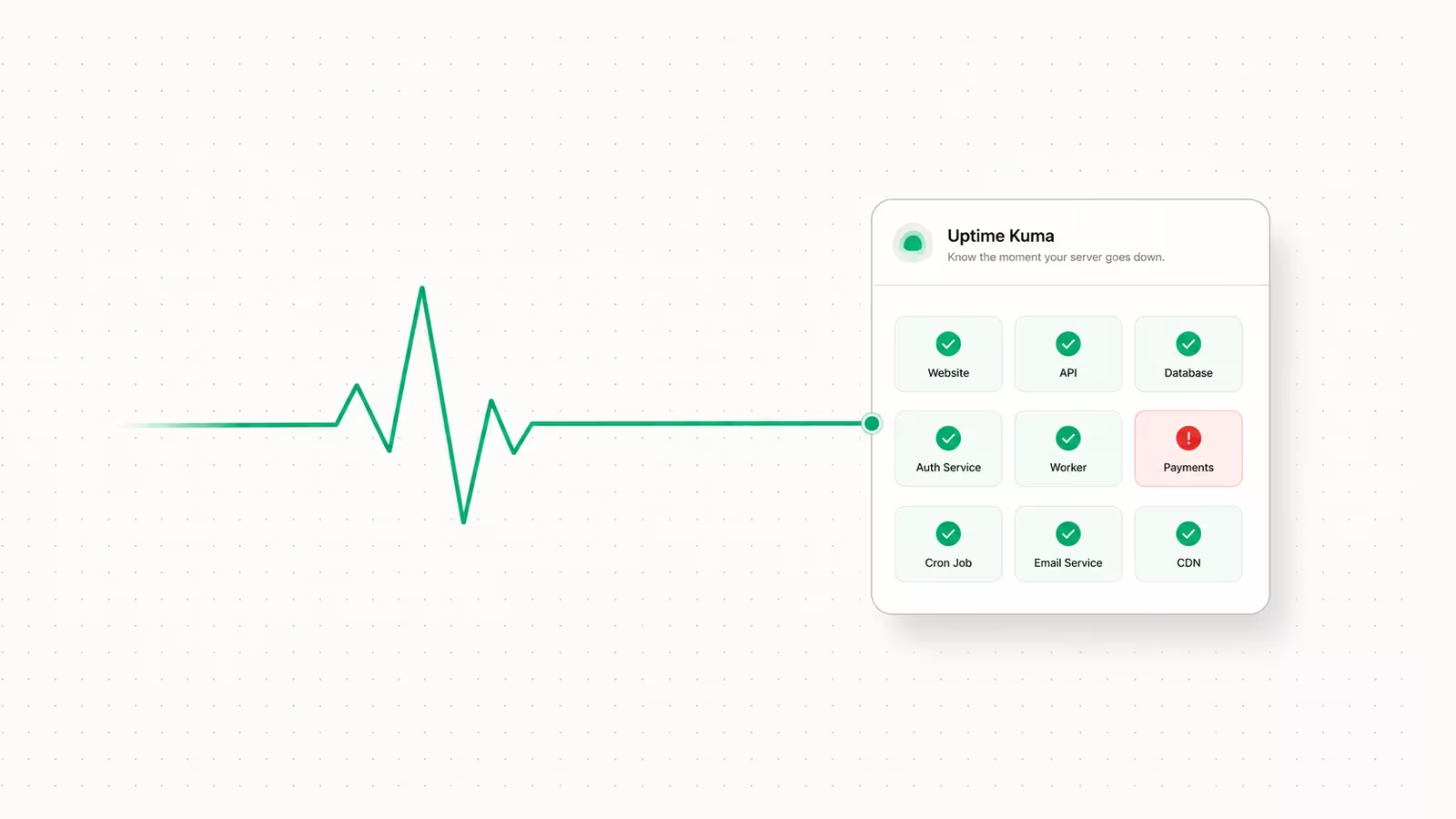
Uptime Kuma is the free, self-hosted monitor that pings your sites and servers and shouts when they go down, and setting it up takes about five minutes. The fast path: run one Docker container, open port 3001 in a browser, create an admin account, and add your first check. This guide walks through how to set up Uptime Kuma properly in 2026 — not just the install, but the two things most tutorials skip: where to actually run it, and how to make sure the alerts reach you when it matters.
The version that matters now is Uptime Kuma 2. The 2.x line is MIT-licensed, ships a rootless Docker image, moved the UI to Vue 3, and added MariaDB as an option alongside the default SQLite. For a single instance watching a handful of services, the defaults are all you need.
What is Uptime Kuma, and why run your own?
Uptime Kuma is an open-source uptime and status monitor: it checks whether a website, API, container, or port is responding, records the response time, and fires a notification the moment a check fails. Think of it as a self-hosted replacement for paid services like UptimeRobot, Pingdom, or Better Stack — except you run it, so there's no monthly fee, no monitor cap, and your target list never leaves your own box. It supports HTTP(S), TCP port, ping, DNS, keyword, and Docker-container checks, publishes public status pages, and in version 2 speaks to more than 78 notification channels including Telegram, Discord, Slack, and email. The trade-off is the trade-off of all self-hosting: you own the uptime of your uptime monitor. That's manageable, and the rest of this guide is mostly about making it reliable.
Uptime Kuma at a glance
| Attribute | Detail |
|---|---|
| License / cost | MIT, free forever |
| Install | Single Docker container |
| Web UI port | 3001 |
| Storage | SQLite (default) or MariaDB |
| Default check interval | 60 seconds |
| Monitor types | HTTP(S), TCP, ping, DNS, keyword, Docker |
| Notifications | 78+ channels (Telegram, Discord, Slack, email…) |
| Status pages | Yes, with a WYSIWYG editor |
| Default login | None — you create the admin on first launch |
What you need before you start
You need a machine that can run Docker and stay on: a cheap VPS, a home-lab box, or a NAS all work. The one rule that shapes everything else — do not run Uptime Kuma on the same server it is meant to watch. If the box hosting your app falls over, so does the monitor that's supposed to tell you, and you find out from an angry customer instead. A $4–5/month VPS in a different region (or a different provider entirely) is the standard setup. If you're spinning up a fresh server for this, harden it first with our secure-first-hour VPS checklist before you expose anything.
You'll also want Docker and the Compose plugin installed, and — optionally — a domain name if you plan to reach the dashboard over HTTPS rather than a raw IP and port.
How to set up Uptime Kuma with Docker
The single-command version, straight from the project's own docs, gets you running immediately:
docker run -d --restart=always \
  -p 3001:3001 \
  -v uptime-kuma:/app/data \
  --name uptime-kuma \
  louislam/uptime-kuma:2
For anything you intend to keep, use Compose instead so the config lives in a file you can back up and version. Save this as docker-compose.yml:
services:
  uptime-kuma:
    image: louislam/uptime-kuma:2
    container_name: uptime-kuma
    volumes:
      - uptime-kuma:/app/data
    ports:
      - "3001:3001"
    restart: always
volumes:
  uptime-kuma:
Then bring it up with docker compose up -d. Either way, the important part is the volume: uptime-kuma:/app/data is where every monitor, setting, and history point lives. Lose that volume and you lose your entire config, so it's the thing you back up. One gotcha from the docs — don't put that data directory on NFS; the embedded database doesn't tolerate it and will corrupt.
Now open http://<your-server-ip>:3001 in a browser. There is no default username or password — the first screen asks you to create the admin account, so pick a strong password here and store it in your manager. That's the whole install.
Adding your first monitor
Click Add New Monitor and choose a type. For a website, pick HTTP(s), paste the full URL, and leave the check interval at 60 seconds to start. A few settings are worth setting deliberately rather than accepting:
- Retries — set this to 2 or 3 so a single dropped packet doesn't page you at 3 a.m. A monitor only goes "down" after the retries are exhausted.
- Keyword monitor — instead of trusting a 200 status code, have Uptime Kuma confirm a word like "login" or "checkout" actually appears in the page body. A server can return 200 while rendering an error page, and this catches that.
- Upside-down mode — flips the logic so "up" means the check fails, handy for confirming something is not reachable.
Add a monitor for each public service, and one TCP or ping check for the underlying host itself. That split tells you whether it's the app that's down or the whole machine.
Wiring up alerts that actually reach you
A monitor with no notification is just a dashboard nobody watches. Go to Settings → Notifications → Setup Notification, pick a channel, and this is the step people skip: send the test notification and confirm it lands before you trust it. A misconfigured Telegram token or an SMTP password that silently fails is worse than no monitoring, because you'll assume you're covered.
Set up at least two channels on different infrastructure — for example Telegram or Discord as the instant push, plus email as the backup. If your alert path depends only on email and your mail provider has a bad day at the same time as your server, you get nothing. After creating the notification, tick it on inside each monitor's settings so it's actually attached; a notification that exists but isn't linked to any monitor does nothing.
Where should you run Uptime Kuma? The part most guides skip
Installing Uptime Kuma is easy; placing it well is what separates a real monitoring setup from a toy. The core idea: the monitor has to be able to fail independently of the thing it monitors. In practice that means three habits.
First, host it off-box — a separate VPS, ideally a separate provider or region from your production stack, so a single data-center incident can't take down both. Second, keep the dashboard itself private. It exposes your whole infrastructure map, so don't leave port 3001 open to the internet; put it behind an authenticated reverse proxy or reach it over a private network. Our guide to Tailscale as a private mesh VPN covers the zero-open-ports approach. Third, if you publish a public status page for customers, host that page's instance somewhere neutral too — a status page that goes down with your site defeats its own purpose.
Put it behind HTTPS, back it up, and keep it current
Three finishing steps turn the install into something you can leave running for a year:
- HTTPS. Reaching a monitoring dashboard over plain HTTP on a raw IP is fine for five minutes and wrong for permanent use. Terminate TLS with a reverse proxy so you get a real certificate and a clean hostname — our Caddy reverse proxy guide does automatic HTTPS in a few lines.
- Backups. Everything is in the
uptime-kumavolume, so snapshot it on a schedule; the same pattern in our Docker volume backup guide applies directly. Test a restore once so you know it works. - Updates. Uptime Kuma ships frequent point releases with fixes and new notification integrations. Pull the latest
:2image periodically, or automate it — carefully — with the approach in our Watchtower auto-update guide.
FAQ
What is the default login for Uptime Kuma? There isn't one. Unlike many appliances, Uptime Kuma ships with no default username or password. On the first visit to port 3001 it asks you to create the admin account, so the credentials are whatever you set. If you're locked out, you reset by accessing the container's data volume rather than using a factory default.
Is Uptime Kuma really free? Yes. It's open-source under the MIT license with no paid tier, no monitor limit, and no account required. Your only costs are the server you run it on and your time. That's the main reason it's the default self-hosted pick over UptimeRobot or Pingdom for people who already run their own infrastructure.
Can Uptime Kuma monitor Docker containers? Yes. Alongside HTTP, TCP, ping, and DNS checks, it has a dedicated Docker monitor that watches container state through the Docker socket, so you can alert when a specific container stops rather than only when its exposed port goes dark.
Does Uptime Kuma need a database?
Not a separate one for a normal setup. It stores everything in an embedded SQLite database inside the /app/data volume by default. Version 2 added optional MariaDB support for large or high-frequency deployments, but most single-instance users never need it.
How often does Uptime Kuma check a monitor? The default interval is 60 seconds, and you can tune each monitor down to 20 seconds or up to hours. Pair a short interval with a retry count of 2–3 so brief network blips don't trigger false alarms.
Sources
- Uptime Kuma — GitHub repository — MIT license, current version 2, official Docker command
- Uptime Kuma — official site — one-line Docker install and port/volume details
- Uptime Kuma — How to Install (wiki) — Docker, Compose, and one-command hosting options
- LinuxToday — Uptime Kuma 2.0 arrives with MariaDB support and UI refresh — rootless image, Vue 3, SQLite/MariaDB storage
- Tech Edu Byte — Uptime Kuma 2.1 notifications and stability — recent v2.1 release notes and stability updates
- Better Stack — A Complete Guide to Monitoring With Uptime Kuma — monitor creation, notifications, and status pages
Some links may earn us a commission at no extra cost to you.

Waqas Ahmed Waseer
Waqas Ahmed Waseer is a developer and automation builder with 8+ years shipping production systems used by 100k+ people. He builds custom multi-tenant SaaS, AI automation (n8n, LLM workflows, WhatsApp bots) and hosting infrastructure (WHM/cPanel, CloudLinux) — and is the maker of WaSphere, FlowMaticX, and the WaseerHost hosting brand. 100+ projects delivered for SMBs, agencies and funded startups.