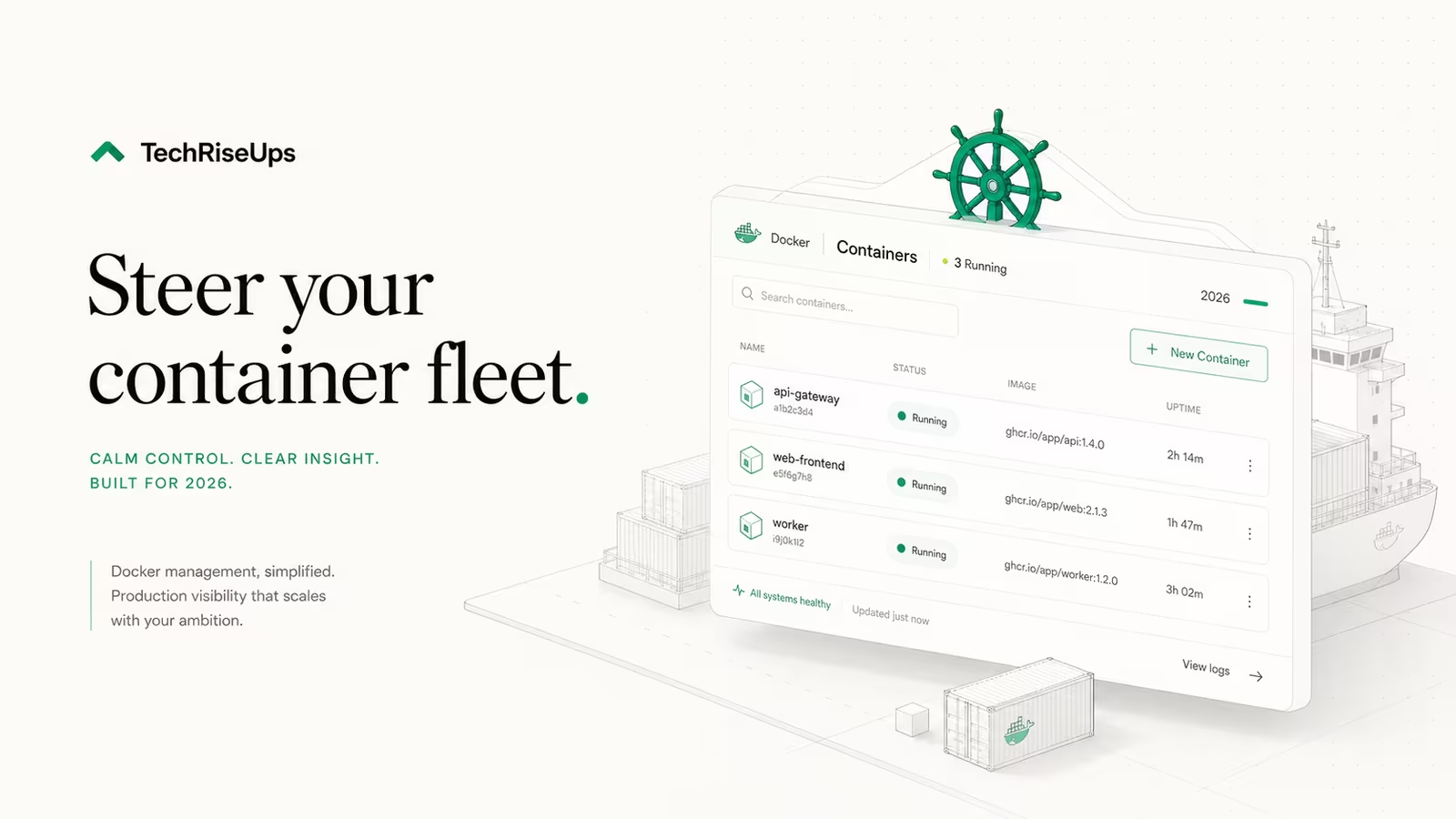
Portainer is a web dashboard that manages your Docker containers, images, volumes, networks, and stacks from the browser, so you stop memorizing docker commands and start clicking. To run it, you create a data volume and start one container that mounts the Docker socket; the UI then lives at https://your-server:9443. This guide covers the exact install for Portainer with Docker in 2026, the ports it uses, how to access it safely (the part most tutorials skip), and when you're better off without it.
What is Portainer for Docker?
Portainer is a lightweight management UI for container platforms. Point it at a Docker host and it renders every container, image, volume, network, and Compose "stack" as something you can inspect, start, stop, update, or deploy without touching the command line. It talks to Docker through the host's socket at /var/run/docker.sock, which is how it sees and controls everything running there. The official docs describe it as hiding the complexity of containers behind a UI — no CLI, no hand-written YAML required for day-to-day work. It runs as a single container itself, supports multiple users with role-based access, and works with standalone Docker, Docker Swarm, and Kubernetes. In 2026 Portainer rebranded away from the "basic Docker GUI" framing toward an "operational control plane," but for a single VPS the practical value is unchanged: a fast, visual way to run your stack.
How to install Portainer with Docker
Installing the Community Edition takes two commands. First create a named volume so Portainer's data survives restarts and upgrades, then run the server container:
docker volume create portainer_data

docker run -d \
  -p 8000:8000 -p 9443:9443 \
  --name portainer \
  --restart=always \
  -v /var/run/docker.sock:/var/run/docker.sock \
  -v portainer_data:/data \
  portainer/portainer-ce:lts
Pinning to the :lts tag (rather than :latest) is the Portainer team's own recommendation for production, since LTS releases get a longer support window. Once it's up, open https://your-server-ip:9443 and create the admin account. One gotcha the docs bury: for security, if you don't set the admin password within a few minutes of first launch, Portainer locks initialization and you have to docker restart portainer before it will let you in. This stops a stranger from claiming an unattended instance first.
Prefer Compose? The same thing as a docker-compose.yml:
services:
  portainer:
    image: portainer/portainer-ce:lts
    container_name: portainer
    restart: always
    ports:
      - "9443:9443"
      - "8000:8000"
    volumes:
      - /var/run/docker.sock:/var/run/docker.sock
      - portainer_data:/data
volumes:
  portainer_data:
Which ports Portainer uses
Portainer exposes a small, specific set of ports. You only need the first one for a single host.
| Port | Purpose | Needed? |
|---|---|---|
9443 | HTTPS web UI (self-signed cert by default) | Yes |
8000 | TCP tunnel for Edge agents on remote hosts | Only for Edge agents |
9000 | Legacy plain-HTTP UI | No — deprecated, skip it |
Stick to 9443. The old 9000 HTTP port still appears in years-old tutorials, but serving the control panel for your entire host over unencrypted HTTP is a bad idea — leave it off. If you're only managing the one local Docker host, you can drop -p 8000:8000 too; it's only for connecting remote Edge agents back to the server.
How to access Portainer safely
This is the step generic install guides gloss over, and it matters more than any other. Portainer mounts the Docker socket, which means anyone who reaches the Portainer UI effectively has root on your host — they can launch a privileged container and own the machine. So the rule is simple: never publish 9443 straight to the public internet.
Three safe patterns, roughly in order of ease:
- Private mesh (recommended). Put the server on a Tailscale network and reach
9443only over the tailnet. Nothing is exposed publicly, and you get an encrypted connection from your laptop or phone. - Reverse proxy with real TLS and auth. Front Portainer with Caddy or Nginx Proxy Manager on
443, add a valid certificate, and layer on an extra auth gate. This is the move if a team needs browser access without installing a VPN client. - SSH tunnel. For occasional access,
ssh -L 9443:localhost:9443 user@serverforwards the port to your machine for the length of the session and nothing more.
Whichever you choose, tighten the host first — the secure-first-hour checklist (firewall, key-only SSH, non-root user) is the foundation a socket-mounted UI sits on. Close 9443 in your firewall to everything except your VPN or proxy.
Is Portainer free? CE vs Business Edition
Yes — the Community Edition (portainer-ce) is fully free and open source under a zlib/MIT-style license, with no node limit and no feature paywall for the container-management basics. The paid Business Edition (portainer-be) adds enterprise features like richer role-based access control, registry management, and support, and Portainer keeps it free forever for up to three nodes with no credit card or trial clock. For a single VPS or homelab, CE is all you need; BE only starts to matter once you're managing several hosts or a team with granular permissions.
When not to use Portainer
Portainer earns its keep for visual, ad-hoc management and small teams. It's a weaker fit in two cases. If your infrastructure lives in git — Compose files or Kubernetes manifests versioned and deployed through CI — clicking changes in a UI works against that source-of-truth discipline; deploy from the repo instead and use Portainer read-only, if at all. And if you want a full platform-as-a-service experience (build from a git push, managed databases, automatic HTTPS), a tool like Coolify covers more ground than a management GUI. Portainer manages containers; it doesn't build or deploy your app from source the way a PaaS does.
FAQ
What is Portainer for Docker? Portainer is a web-based UI that lets you manage Docker containers, images, volumes, networks, and Compose stacks from a browser instead of the command line. It connects to Docker through the host socket and can manage standalone Docker, Swarm, and Kubernetes.
Should I use Portainer or Docker? It's not either/or — Portainer runs on top of Docker. Keep the Docker engine as your runtime and add Portainer if you want a visual way to manage it or give teammates controlled access. If you're comfortable in the CLI and manage everything from Compose files in git, you may not need it.
Is Portainer free? Yes. Portainer Community Edition is free and open source with no node or feature limits for core management. The Business Edition adds enterprise features and is free for up to three nodes; beyond that it's paid.
What is the difference between Docker and Portainer? Docker is the container engine that actually builds and runs containers. Portainer is a management layer on top of it — a dashboard for viewing and controlling what Docker is running. Docker does the work; Portainer gives you a UI to drive it.
Sources
- Portainer Docs — Install CE with Docker on Linux — install commands,
:ltstag, ports 9443/8000/9000 - Portainer Docs — Welcome / overview — what Portainer manages and how it connects to the Docker socket
- Portainer — Pricing — CE free, Business Edition free for up to three nodes
- Portainer Blog — Why we rebranded Portainer — 2026 repositioning from Docker GUI to control plane
- Portainer on Docker Hub — official
portainer/portainer-ceimage and tags
Some links may earn us a commission at no extra cost to you.

Waqas Ahmed Waseer
Waqas Ahmed Waseer is a developer and automation builder with 8+ years shipping production systems used by 100k+ people. He builds custom multi-tenant SaaS, AI automation (n8n, LLM workflows, WhatsApp bots) and hosting infrastructure (WHM/cPanel, CloudLinux) — and is the maker of WaSphere, FlowMaticX, and the WaseerHost hosting brand. 100+ projects delivered for SMBs, agencies and funded startups.