

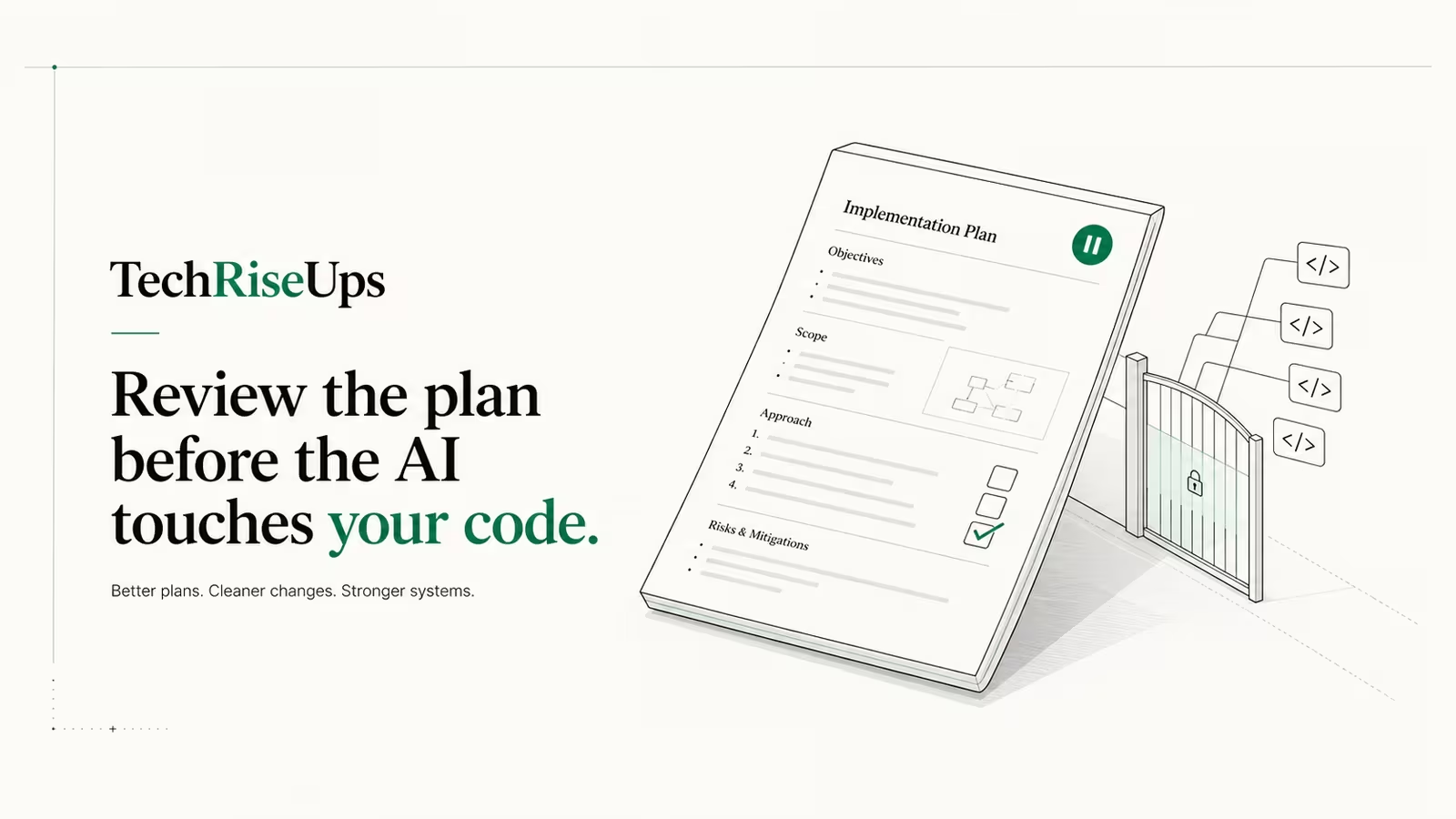
Claude Code plan mode is a read-only mode where the agent explores your codebase and writes a step-by-step implementation plan without editing a single file. You turn it on by pressing Shift+Tab until the status bar reads ⏸ plan mode on, by prefixing a prompt with /plan, or by launching with claude --permission-mode plan. Claude reads, searches, and drafts the plan; nothing gets written to disk until you approve it. It is the cheapest way to stop an AI agent from confidently rewriting the wrong ten files. We build this content pipeline on Claude Code, and plan mode is the first thing we reach for on any change that spans more than one file.
What is Claude Code plan mode?
Plan mode is one of Claude Code's permission modes: a session state that controls what the agent can do without asking you first. In plan mode, Claude is limited to reading files, searching the repository, running read-only shell commands, and asking clarifying questions. Instead of editing code, it produces a plan, which is really just a markdown document describing the changes it intends to make, the files it will touch, and the order it will work in. You read that plan like a pull request description, refine it, and only then let Claude execute. The official Claude Code docs describe it as "research and propose changes without making them." The point is separation: thinking is cheap and reversible, editing is not, so plan mode forces the thinking to happen and get your sign-off before any code moves.
How to turn on plan mode
There are three ways in, and they suit different moments:
| Method | What to do | Best for |
|---|---|---|
| Keyboard | Press Shift+Tab to cycle default → acceptEdits → plan | Switching mid-session once you realise a task is bigger than it looked |
| Slash prefix | Start a single prompt with /plan | A one-off planning question without changing the session mode |
| CLI flag | Launch with claude --permission-mode plan | Starting a session you know will need a plan first |
When plan mode is active the status bar shows ⏸ plan mode on, so you always know the agent is in read-only territory. Press Shift+Tab again to leave plan mode without approving anything. The /plan prefix is a slash command, so it applies to just the prompt you type it in front of, which is handy when you mostly work in another mode but want one planned answer.
What Claude can and can't do in plan mode
In plan mode Claude can read any file, grep and glob across the repo, run read-only commands to understand the code, ask you questions, and write the plan itself. It cannot edit your source, create or delete files, commit, or run destructive shell commands. Those edits stay blocked until you approve the plan. There is one caveat worth knowing: in a session that was started with bypass permissions available, plan mode's blocks are not enforced, so treat plan mode as a guardrail, not a hard sandbox. It is also worth being honest about the mechanics. As Armin Ronacher documented after reverse-engineering it, the feature is largely a structured prompt plus system reminders that keep the agent in read-only mode and a markdown plan file it edits like any other. That is not a criticism of whether it works; it is a reminder that plan mode is behavioural discipline, useful precisely because it is consistent.
Plan mode vs the other permission modes
Plan mode makes the most sense once you see where it sits in the full set of permission modes. Each one trades oversight for speed:
| Mode | Runs without asking | Best for |
|---|---|---|
default (Manual) | Reads only | Getting started, sensitive work |
acceptEdits | Reads, file edits, common filesystem commands | Iterating on code you are actively reviewing |
plan | Reads and explores, no edits until you approve | Understanding a change before making it |
auto | Classifier-approved actions, fewer prompts | Trusted, longer autonomous stretches |
dontAsk | Only pre-approved tools | Locked-down CI and scripts |
bypassPermissions | Everything | Isolated containers and VMs only |
The practical distinction people search for is plan mode versus edit mode. "Edit mode" usually means acceptEdits, where Claude writes changes as it goes. Plan mode is the opposite end: it writes nothing until you have read and approved the blueprint. default sits between them, prompting you for each individual edit. Use plan mode to decide what to do, then approve into an editing mode to actually do it.
How to review and approve a plan
When the plan is ready, Claude presents it and asks how to proceed. Per the permission-modes documentation, you get four choices:
- Yes, and use auto mode (or "Yes, auto-accept edits" when auto mode is unavailable) — approve and let Claude work with minimal prompting.
- Yes, manually approve edits — approve, but review each edit individually as it happens.
- No, refine with Ultraplan on Claude Code on the web — hand the plan to a cloud session for browser-based refinement.
- No, keep planning — stay in plan mode and tell Claude what to change.
Before you decide, press Ctrl+G to open the proposed plan in your default text editor and edit it directly. This is the highest-leverage habit in the whole workflow: tighten the scope, delete the steps you disagree with, add a constraint the agent missed. Approving a plan exits plan mode, switches the session to whichever editing mode your choice describes, and even names the session from the plan's content. To plan again later, cycle back with Shift+Tab or prefix your next prompt with /plan.
When to use plan mode, and when to skip it
Reach for plan mode when the cost of a wrong turn is high: multi-file refactors, database schema changes, an unfamiliar codebase, security-sensitive code, or anything that touches roughly three or more files. In those cases the plan is where you catch the misunderstanding, cheaply, before it becomes a diff you have to unpick. It pairs naturally with subagents for research-heavy exploration and with git worktrees when you want to plan one feature while another runs.
Skip it for small, well-understood work. If you already know the exact one-line change, dropping into plan mode just adds a review round-trip to a task that did not need one. Some experienced users go further and argue plan mode is thinner than the interface suggests, since asking Claude for a written plan in a normal message gets you most of the same value with more control. There is truth in that. The counterpoint is consistency: plan mode makes "plan first" the default path rather than a habit you have to remember, and for a team or an automated pipeline, a reliable default beats a good intention.
Make plan mode your default, and use it in automation
If you want to plan first every time, set it as the default. Add this to your project's .claude/settings.json (or ~/.claude/settings.json for every project):
{
  "permissions": {
    "defaultMode": "plan"
  }
}
The same --permission-mode plan flag works with -p for headless, non-interactive runs, which is how you build a "plan-only" review gate into CI: have Claude output a plan for a change and post it for a human to read before anything merges. For heavier planning that would tie up your terminal, Ultraplan hands the task to a Claude Code on the web session running in plan mode, so the plan drafts in the cloud while you keep working locally. Start it with /ultraplan; it is a research-preview feature, so expect it to evolve.
FAQ
What is the difference between plan mode and edit mode?
Plan mode is read-only: Claude drafts an implementation plan and edits nothing until you approve it. "Edit mode" generally refers to acceptEdits, where Claude writes changes to your files as it works. Use plan mode to agree on the approach, then approve into an editing mode to apply it.
What is the keyboard shortcut for plan mode?
Press Shift+Tab in the CLI to cycle through default, acceptEdits, and plan. You will land on plan mode when the status bar shows ⏸ plan mode on. Press Shift+Tab again to leave it without approving a plan.
Does plan mode actually stop Claude from editing files? Yes, in a normal session edits and destructive commands are blocked until you approve the plan. The exception is a session started with bypass permissions available, where those blocks are not enforced, so plan mode is a guardrail rather than a hard sandbox.
Can I set plan mode as the default?
Yes. Set "defaultMode": "plan" under permissions in .claude/settings.json for one project, or in ~/.claude/settings.json to apply it everywhere. New sessions then start in plan mode.
What is Ultraplan?
Ultraplan sends a planning task from your local CLI to a Claude Code on the web session running in plan mode, so the plan is drafted in the cloud while your terminal stays free. You trigger it with /ultraplan or by choosing it when approving a plan. It is currently a research preview.
Sources
- Claude Code Docs — Choose a permission mode — official reference for plan mode, the full mode list, the approval options, and setting
defaultMode - Claude Code Docs — Common workflows: Plan before editing — the
Shift+Tabcycle,claude --permission-mode plan, and the⏸ plan mode onstatus badge - Claude Code Docs — Ultraplan — cloud-based plan-mode sessions handed off from the CLI
- Armin Ronacher — What Actually Is Claude Code's Plan Mode? — how plan mode works under the hood and its limits
Some links may earn us a commission at no extra cost to you.

Waqas Ahmed Waseer
Waqas Ahmed Waseer is a developer and automation builder with 8+ years shipping production systems used by 100k+ people. He builds custom multi-tenant SaaS, AI automation (n8n, LLM workflows, WhatsApp bots) and hosting infrastructure (WHM/cPanel, CloudLinux) — and is the maker of WaSphere, FlowMaticX, and the WaseerHost hosting brand. 100+ projects delivered for SMBs, agencies and funded startups.

